 mygooberDownload for Windows
A photo-based desktop pet is an interactive desktop character created using a pet or person image as its starting point. mygoober lets Windows 10 and Windows 11 users upload a photo in the client, choose a visual style, and generate a Goober with idle, typing, petting, and dragging actions.
A photo is the starting point, not the whole experience
A photo can capture the details that make an animal or person familiar to you. Creating a Goober gives that image a different role: a character you can see and interact with while using your desktop. The source photo guides the custom creation, while your selected style determines the visual direction.
The process takes place in the mygoober Windows client. Download and open the app to upload your photo and use custom generation. This page explains the workflow and shows a website illustration; it is not an online upload tool. If you prefer an existing character, the free Goober library offers a separate way to begin.
A labeled photo and style example
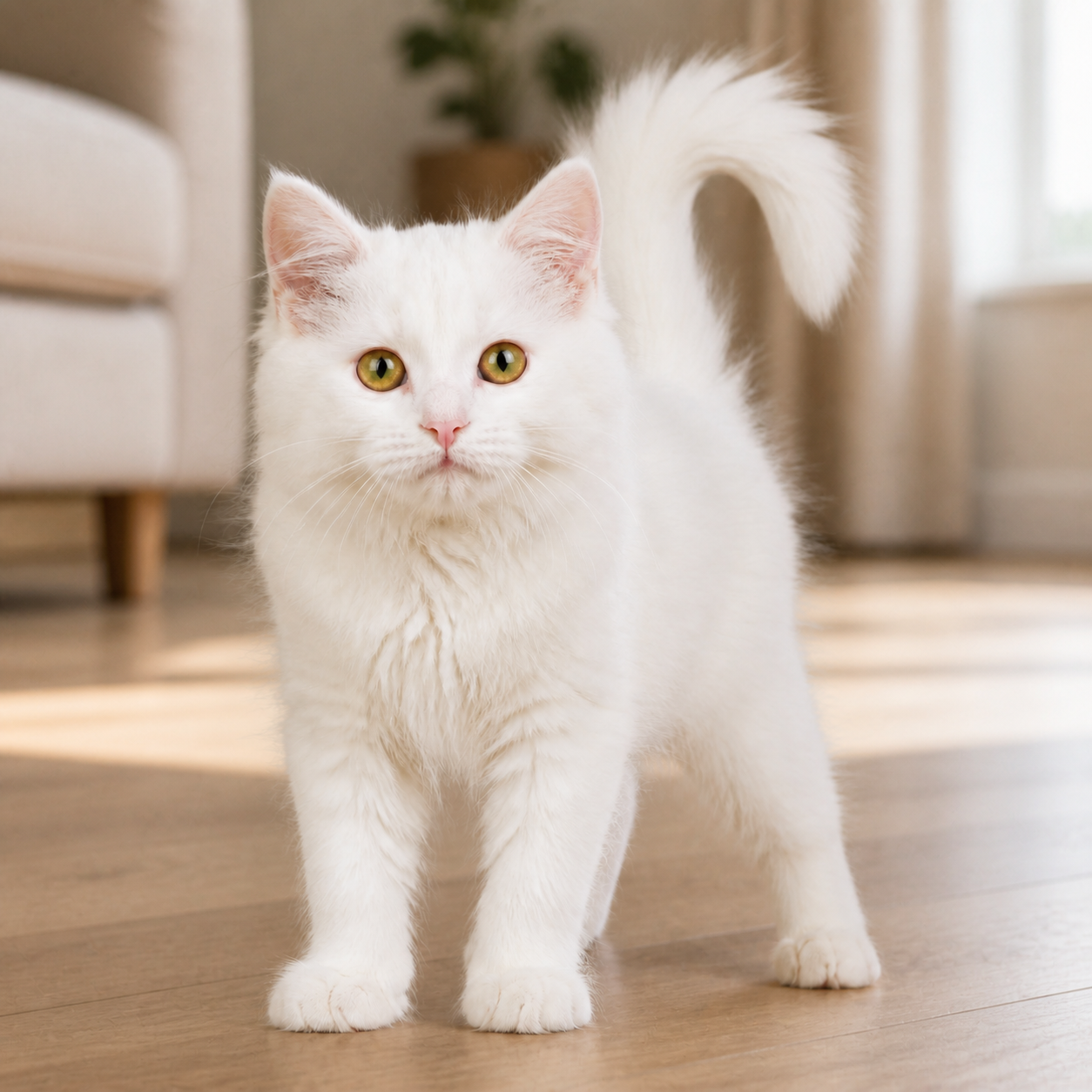
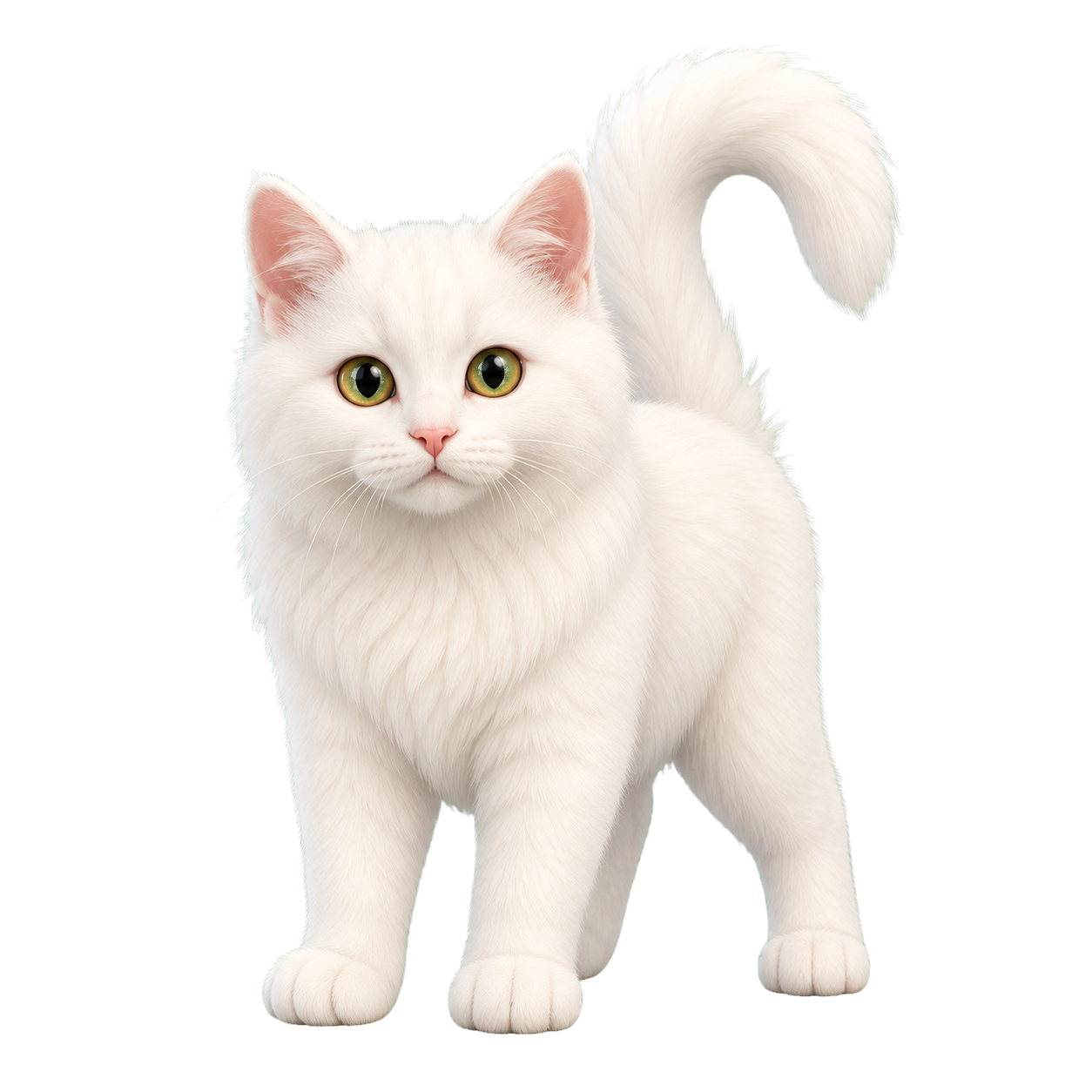
The two images below illustrate the idea of moving from a cat photo to a styled desktop character. They are website illustrations used to explain the workflow, not a real user's upload and verified generation result. Use the example to understand the visual direction, rather than expecting your own photo to produce this exact character.
What the example helps you compare
Look at the subject's overall outline, face, and light coat, then consider the softer, sculpted treatment of the style illustration. This is a useful way to think about your own priorities. You might value a recognizable coat pattern, an appealing expression, or the character's overall shape more than a close photographic likeness.
Choose a photo you can review clearly
Make the intended subject easy to recognize
As a practical suggestion, choose a photo with a clear view of the pet or person you want to use. Compare several images and ask which one shows the features you care about most. A visible face, familiar markings, and a pose you like can help you explain your own goal to yourself.
Photos with several overlapping subjects or a busy background may make your review more complicated. Try choosing a simpler image if it helps you see the intended subject. These are photo-selection suggestions, not documented file limits, mandatory composition rules, or a guarantee about the generated Goober. Check any current upload requirements shown in the app.
Think about the difference between pets and portraits
For pet photos, mygoober offers realistic, 3D, and anime styles. Realistic emphasizes natural fur and lifelike texture, 3D offers a soft sculpted look, and anime uses clean lines and soft colors. For people, choose paper cutout, 3D chibi, or anime chibi. Use the style choices for the type of photo you upload.
Only use a photo you have permission to use. A portrait of yourself and a photo of your own pet are straightforward ideas to consider, while someone else's photo needs appropriate permission. Before uploading personal images, review the information and terms available through the app and website so you can make an informed choice.
Upload and create in three steps
1. Open mygoober and upload your chosen image
Download the Windows client, open it on Windows 10 or Windows 11, and enter the custom character creation workflow. Upload your selected pet or person photo there. The actual upload belongs in the app; sending a photo to the website's contact email is not the creation workflow described here.
2. Select a style and check the Coin cost
Choose from the available styles for your photo type. Before using the generation service, top up your account to receive Coins. Creating characters and animations uses Coins, so read the amount shown in the app before each action. The free library does not establish that custom photo generation is free.
3. Generate, review, and confirm the main image
Generate your custom Goober and review the main image before confirmation. Compare the result with your priorities: the face, outline, distinctive details, and selected style. A stylized character can change proportions or visual texture, so assess whether you like the overall character rather than assuming that every photographic detail will be preserved.
Once you confirm the custom Goober's main image, its appearance is locked. If you want to use a different look later, create another custom Goober. This makes the confirmation step meaningful. Check the app's displayed Coin amount before any additional generation action, and choose the image you actually want to keep.
Use the Goober on your desktop
Every Goober has four interactive actions. Idle keeps the character nearby, typing joins in as you use the keyboard, petting gives a response to a gentle pat, and dragging lets you reposition it. A photo-based Goober therefore combines a personal visual starting point with the app's supported desktop interactions.
After creating the character, think about where you want to see it during normal computer use. A spot beside your main work area can make it easy to notice. If your workspace changes, move the Goober with dragging. The appeal can be a familiar pet, a playful portrait, or simply an image you enjoy seeing during the day.
Read the guide that matches your next decision
For a complete overview of styles and the creation steps, read the desktop pet generator guide. For confirmed appearances and planning a personal character, see the custom desktop pet maker guide. If your source image is a cat photo, the desktop pet cat page explores that example in more detail.
Frequently asked questions
Where do I upload a photo to make a desktop pet?
Upload the photo in the mygoober Windows client through its custom character creation workflow. Download the app and open it on Windows 10 or Windows 11. This website does not provide a browser upload or generator.
Can I turn a photo into a desktop pet for free?
You can choose existing characters from the free Goober library. Custom photo generation uses account Coins, obtained through a top-up. Check the amount shown in the app before creating a character or animation.
Can I use a dog photo or a person photo?
mygoober accepts pet or person photos for custom creation. Pet styles are realistic, 3D, and anime. Person styles are paper cutout, 3D chibi, and anime chibi. Use images you have permission to use.
Will the Goober look exactly like my photo?
The photo is a starting point and the selected style changes its visual treatment. This guide does not promise an exact match. Review the custom main image before confirming it, because the confirmed appearance is locked.
Are the photo and 3D cat shown here real user results?
No. They are website illustrations used to explain a source-photo idea and a 3D style direction. They are not presented as a real user's upload and verified generation result.
Related guides
Download for Windows
Supports Windows 10 and Windows 11. Custom generation uses account Coins; characters in the free library can be chosen for free.